
Lockwood Home App
FAQs, How-to Guides and Troubleshooting for Lockwood Smart Locks and Lockwood Home App.
Download the Lockwood Home App directly to your phone from the App Store or Google Play.
FAQs
In order to provide optimal service to all our users, Lockwood maintains app support for the two most recent operating systems for both iOS and Android platforms.
*If you have downloaded the Lockwood App and are running an older version of either OS, you should be able to continue using the version of the app you have. If you run into issues, contact Customer Support at Customerservice.au@assaabloy.com.
The Lockwood Home Hub communicates with Lockwood Home servers to allow remote access to the Lockwood Home Smart Lock when you are outside of Bluetooth range. Without a Lockwood Home Hub, you will not receive updates to your Activity Feed until an owner connects to the lock with their Lockwood Home App. If you have HomeKit or Z-Wave and no Lockwood Home Hub, lock activity will not update in the Activity Feed until an owner has made a Bluetooth connection with the lock.
When it comes to some third-party integrations, a Lockwood Home Hub is required to enable these devices to communicate Cloud-to-Cloud.
The following table indicates which third-party integrations require a Lockwood Home Hub:
| Integration | Lockwood Home Hub Needed? |
| Google Home | Yes |
| Amazon Alexa | Yes |
| Nest | No |
| IFTTT | No, but recommended |
| Logitech Pop | Yes |
| Logitech Harmony Home Hub | Yes |
| Wink | Yes, unless it’s Smart Lock Pro with a Z-Wave hub |
| Airbnb | Lock Only: No |
| HomeAway | Yes |
| Xfinity Home | Yes |
| Honeywell | Yes |
The following scenarios explain what happens with and without a Lockwood Home Hub
Lockwood smart lock with Lockwood Home Hub
Receive Smart Alert notifications when:
- Door is manually locked/unlocked
- Lock is accessed by entry code only users
- When door ajar (with DoorSense™)
- Both auto-lock events and one-touch (if enabled)
- Receive battery readings as soon as your batteries report low
Alexa and/or Google Assistant apps update as events occur. Activity Feed updates as lock events listed above occur as long as your Lockwood Home Hub is online.
Lockwood smart lock without a Lockwood Home Hub
Receive Smart Alerts only if another Lockwood Home App user locks/unlocks your door using the Lockwood Home App. Without a Lockwood Home Hub, battery readings may be delayed or not sent at all until a lock Owner connects to the lock through the Lockwood Home App. The Activity Feed only updates when another Owner (not Guest) accesses the lock using the Lockwood Home App. The Activity Feed will update retroactively, but not at the time of the event.
Lockwood may need to assist you with a factory reset if you've acquired a previously-used Lockwood device. Please contact our Support team at Customerservice.au@assaabloy.com and provide your valid proof of purchase (if possible) and the serial number, which is located on the back of the device. The Lockwood support team will contact the original owner to perform the factory reset.
If you are the lock owner and you would like to transfer your lock to a new owner, it is best to factory reset your lock before you transfer it. Please refer to the next article below on "How to reset your lock to its factory settings."
A factory reset erases all guest and owner data from your lock, restoring it back to its original, out-of-the-box settings. It also removes the lock from any owner or guest keychains that it is affiliated with.
You do not need to be near your lock to reset it; however, you will need to have access to the lock in order to re-calibrate it. If there is a Keypad paired with the lock, the Keypad must be disconnected before factory resetting the lock.
Factory reset instructions
1) On your phone, open the Lockwood Home App and go to the lock circle screen, which is the screen that shows you whether your door is locked or unlocked.
2) Select the Settings menu (gear icon).
3) Select the device you wish to reset.
4) Scroll to factory reset.
5) Select "Reset Lock."
These steps should restore your lock to its factory settings.
If you attempt a factory reset when you're not connected to Bluetooth, you will receive a "Trouble Connecting to Lock" notification. If possible, try factory resetting the next time you are in Bluetooth range. If you have moved and you are unable to factory reset while in Bluetooth range of the lock, select "Reset Anyway" when you receive the notification.
Lockwood Home Smart Lock works with Google Home or any Google Assistant-enabled device. With the Lockwood Home Google Assistant integration, you can ask Google Assistant to control your door using your voice.
How do I configure Google Home with my Lockwood Home Account?
Follow the steps below to pair your Lockwood Home Account with your Google Home account. You need to have a Google device such as a Google Home, Google Home Mini, or Google Home Max already configured to your home network:
- Open the Google Home app and log in to your Google Account
- Select the Add (+) option at the top
- Select Set up a device
- Under Works With, choose "Have something already set up?"
- Scroll to or search for Lockwood Home in the Manage Accounts menu
- Follow the steps to sign in to and verify your Lockwood Home Account
- You need to agree to allow Google to Operate your Lockwood Home Smart Locks / View the Status of your Lockwood Home Smart Locks
- Next, select a security code/PIN. Be sure to use a memorable code as this is needed to operate your lock using Google Home.
Once your Lockwood Home Account is connected to Google through the Google Home, you can make the following lock requests or check the lock's status:
- "OK Google, lock my front door" (use the name assigned to your door in the Lockwood Home App)
- "OK Google, is my front door locked?"
- "OK Google, unlock my front door." Google Home will prompt you for your security PIN code. Reply with your PIN to unlock the door.
If you have DoorSense installed on your door, you can also check that status by saying:
- "OK Google, is my front door closed?"
PLEASE NOTE: If you change the name of your lock in the Lockwood Home App, it is best to unlink and relink your accounts so the new name is recognised by Google Home.
To update your security code/PIN you will need to unlink and relink your Lockwood Home Account with your Google account:
- Open the Google Home App and scroll until you see the Lockwood Home Smart Lock paired with your Google Home account
- Select (any) lock
- Select "Unlink Lockwood Home"
- Confirm Unlink
- On the "Manage Account" screen select Lockwood Home
- Tap "Unlink account" and confirm unlink
Once you have unlinked your accounts, go through the setup steps again to reset your PIN.
Google Home requires a Lockwood Home Hub in order to connect to our servers and complete the integration with your Lockwood Home Smart Lock. Because Google Assistant cannot talk directly to the lock, the Lockwood Home Hub allows communication Cloud-to-Cloud.
The diagram below explains how the integration works:
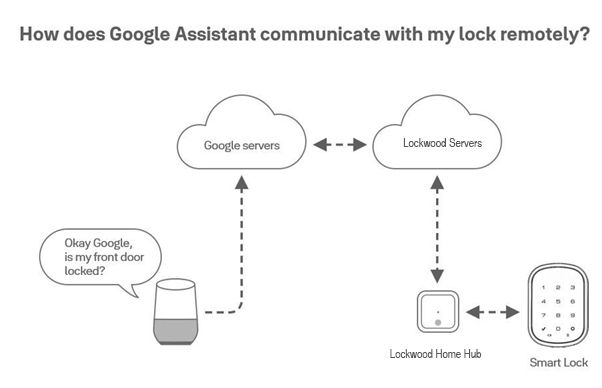
A Lockwood Home Hub is required with Google Home integration. Because Google Assistant can’t talk directly to the Lockwood Smart Lock, the Lockwood Home Hub allows Google Assistant to communicate with Yale Cloud‑to‑Cloud. Without the Lockwood Home Hub, you will not be able to use Google Home to operate your Lockwood Smart Lock.
How do I unlink my Google Home and Lockwood Home Accounts?
- Open the Google Home app
- Select the Lock
- Select "Unlink Lockwood Home"
- When prompted, select "Unlink"
- Select Lockwood Home
- Select Unlink Account and Unlink when prompted
Currently, you can only set up 'auto-unlock' for ONE LOCK per Keychain. Typically, this would be your main entrance door, which is the most frequently used. If you have both a security screen door and an entrance door, and you want 'auto-unlock' to work for both when you approach them, you will need to purchase Lockwood Unity series locks.
With the Lockwood Home App, you are always in control of your front door, no matter where you are, right from your smartphone. Download the Lockwood Home App directly to your phone from the App Store or Google Play.
You can make updates to account information directly in the Lockwood Home App. Open the App, from the side menu navigate to User Settings by selecting View Profile on the upper left.
Currently, our App is optimised for iOS and Android mobile devices. Lockwood uses a token to authorise your mobile device entry to your home. For security purposes, this won't work with a desktop application.
Only device Owners are authorised to add/remove or restrict others' access. If you are a device owner and you wish to remove a guest from your device, open the Lockwood Home App and go to the Guest List. Select the user you wish to remove from the app. On the next screen, select REMOVE USER. Select the Delete option on the message to complete the steps. Changes to guest access will appear in the Activity log.
If you need to remove a lock from your account, the following steps will help:
- Open the Lockwood Home App and navigate to the lock in the keychain
- Go to the guest list and select the contact and then choose REMOVE SELF
You will be prompted to verify that you would like to remove the user, in this case yourself, from the device.
If you are one of a number of owners on the lock, you can remove yourself by following the steps above and selecting REMOVE USER, provided there is another owner on the lock. If you are the sole owner, you will need to perform a factory reset. If you need to remove a lock so someone else can install it, follow the directions in "How to reset your lock to its factory settings."
If your smartphone battery dies, you can still use a physical key to unlock your door. Alternately, you can also access your lock by logging into your account while using a friend's or neighbour's phone.
If you experience this, try closing out of the app completely, reopening, and reconnecting to the lock.
If you no longer see a device that was once installed on your app it is for one of two reasons:
- The device owner removed you
- The device has been reset
Lockwood locks have two types of Owners: Lock Owners and House Owners. Lock Owners have unrestricted access to a Smart Lock they are listed as an Owner on. They can also set up accessories such as Lockwood Home Hub and Keypad on that lock. House Owners can set up new Lockwood devices and edit house settings (house name, photo, and add/remove House Owners). Follow these steps to add another House Owner:
- Select the property from the keychain
- Navigate to House Settings
- Choose Edit House Owners
- Select or deselect from the list of existing House Owners to make changes
You must be listed as a House Owner in order to make changes to the House Settings. To edit the name for a property:
- Select the property from the keychain
- Navigate to House Settings
- Select House Name & Photo
- Make the needed updates to the house name
- Close out of the app to finalise changes
PLEASE NOTE: Once you have made changes, you will need to close out of the app and reopen it for changes to appear.
You must be a Lock Owner to make changes to a lock name. Follow these steps:
- Open the Lockwood Home App
- Select the house the lock is associated with from your Keychain
- Go to House Settings
- Select the device
- Select Lock Name
- Rename the lock in the field provided
PLEASE NOTE: Once you have made changes, you will need to close out of the app and reopen it for changes to appear.
You must be listed as a House Owner in order to make changes to the House Settings. After you have set up at least one device on your account, select the associated property from the list in the keychain then go to House Settings → House Name & Photo. Select the plus sign over the photo and choose between: 1) Select Photo From Gallery; or 2) Take Photo. Follow in-app instructions to complete the steps.
PLEASE NOTE: Once you have made changes, you will need to close out of the app and reopen it for changes to appear.
Changes to your network impact your Lockwood devices. If your internet provider changes or you replace your Wi-Fi modem, you will need to update the network information in order for your devices to continue working. Detailed instructions are outlined in the "How to Change a Device's Wi-Fi Network and/or Wi-Fi Password" article of the Lockwood Home Hub How-to Guide.
The Lockwood Smart Keypad can only be paired to one lock. The Keypad will need to be disconnected from the Entrance lock and paired to the screen door lock. Once paired to the screen door lock, with the two locks connected to a Lockwood Home Hub/s, the DualDoor™ feature can be activated. If you had users and PIN codes set up under the keypad on the entrance lock, these will need to be re-added as this information cannot be transferred over due to privacy requirements.
Yes, as the screen door will predominantly be the first door to enter, users will require access to this. Access for the Front Door lock will also need to be duplicated for the screen door lock. Once the screen door lock has been set up, you can transfer access as follows:
App access:
- Select Guest List
- Select Guest Access
- Change the Access level for the screen door lock
Yes you can, however if there is an event of SyncPath™ failing, the user will not be able to access the entrance lock.
To set up the SyncPath™ feature you must have the below products initially set up under the one Home:
• Yale Unity Security Screen Door Lock
• A Lockwood Smart Lock (e.g. SDL Deadbolt)
• Lockwood Home Hub
Once set up, follow the steps below:
- Select the House settings icon from the menu on the lower right of the screen
- Select the lock settings for the Security Screen Door Lock
- Scroll to utilities and select SyncPath™ Locking
- Follow the steps to set up SyncPath™ Locking
In the event your internet connection is lost, the SyncPath™ feature will still work. However, we strongly suggest that you and your guests have access to both locks — not only one — via the App and contactless key tag in case of power failure to the Lockwood Home Hub.
HomeKit enabled FAQs
- Tap Enable HomeKit.
- Choose an existing HomeKit home, or choose to add a new one.
- Select Add a new HomeKit home, then tap Next.
- Name your home, tap Continue.
- Choose which room you want to add your lock to, or opt out and choose None, tap Continue.
- Locate the 8-digit HomeKit accessory code on your Lockwood Smart Lock. This can be found on the battery cover or on the module for SDLTM series locks.
- Make sure your phone is near the lock and HomeKit is powered on.
- Position the code in the frame so HomeKit can scan it.
- If you have trouble scanning, you can also manually enter the eight-digit code.
You're ready to use Siri to operate your Smart Lock.
Installation and set up steps for the HomeKit Enabled Smart Lock are available in the product guide. Setup in the app includes additional steps to enable HomeKit.
When the lock is installed correctly on a door that is easily operated (no need to push, pull, or lift your door), and your deadbolt is not "sticky", the battery could last up to 3 months.
Yes, if you have a 4th generation Apple TV within Bluetooth range of your Smart Lock that is set up to work with HomeKit. You can then use Siri remotely or operate remotely through the Home app. Siri (iPhone) communicates directly with your Lockwood Smart Lock via your Apple TV, iPad, or HomePod.
The diagram below explains how the integration works:
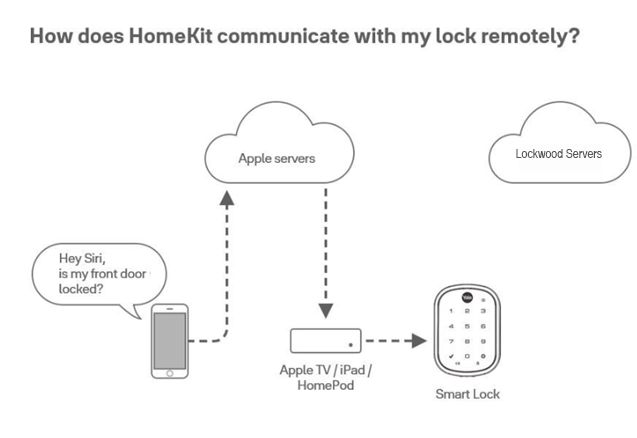
Siri (iPhone) communicates directly with your Lockwood Smart Lock via your Apple TV or Ipad or HomePod.
Lockwood SDLTM Series:
- Enter in the Master code
- Select 7
- Select 3, #, # to unenroll the module
- Remove 1 battery from the lock
- Wait 10 seconds and then replace the battery into the lock
- Enter in the Master code
- Select 7
- Select 1, #, # to re-enroll the module
If you have a HomeKit-enabled Smart Lock, adding a new Owner and giving them HomeKit access can be done at the same time.
Integrating with Amazon Alexa
Lockwood Home Smart Lock works with all Alexa-enabled devices including Echo Show, Echo Plus, Echo, and Echo Dot.
Alexa is Amazon's voice assistant, available on Amazon Echo smart speakers, Fire Tablets, Fire TV products, and the Alexa mobile app.
You can use Alexa to interact with your Lockwood Home Smart Lock using your voice. Your Lockwood Home lock must be connected to Wi-Fi using the Lockwood Home Hub. There are two primary ways to interact with Alexa — these are called Skills.
These are the official Alexa Smart Home Skills provided by Lockwood. You can say:
- "Alexa, lock my door."
- "Alexa, is my front door locked?"
Amazon Alexa requires a Lockwood Home Hub in order to connect to our servers and complete the integration with your Lockwood Home Smart Lock. Because Alexa cannot talk directly to the lock, the Lockwood Home Hub allows Alexa to communicate with Lockwood Cloud-to-Cloud.
The diagram below explains how the integration works:
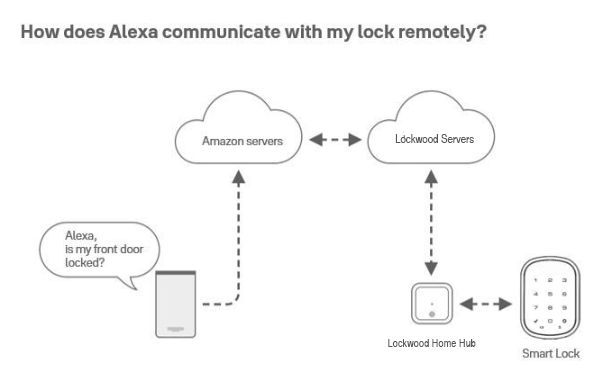
A Lockwood Home Hub is required with Amazon Alexa integration. Because Alexa can’t talk directly to the Lockwood Smart Lock, the Lockwood Home Hub allows Alexa to communicate with Yale Cloud‑to‑Cloud. Without the Lockwood Home Hub, you will not be able to use Alexa to operate your Lockwood Smart Lock.
Apple Watch & Lockwood Home
If you have an Apple Watch and a Lockwood smart lock with Wi-Fi, you can use your Apple Watch to lock and unlock it. To lock or unlock with Apple Watch, open the Lockwood Home App on the device. Tap the green lock circle to unlock the door. Tap the red lock circle to lock it again.
Remote operations and Auto-Unlock do not work with Apple Watch.
PLEASE NOTE: Lockwood Home for Apple Watch is available to Lock Owners only.
If you experience issues using the Lockwood Home App on your Apple Watch, follow these steps:
First, reset your account password if you are unsure what it is:
- From your iPhone, open the Lockwood Home App
- Tap the menu in the upper left corner
- Select View Profile to open User Settings
- Go to Change Password and update
Next, uninstall the Lockwood Home App from your iPhone, then power-cycle both your iPhone and Apple Watch by powering each one OFF and then back ON. Reinstall the Lockwood Home App from the Apple Store and sign back in using your updated credentials.
Next, ensure you can see the Lockwood Home App on your Apple Watch:
- On your iPhone, open the Watch app
- Go to Lockwood Home
- Ensure the "Show App on Watch" option is enabled
Then open the Lockwood Home App on both your iPhone and your Apple Watch, and complete the following steps:
- With the Lockwood Home App open, hold down the flat button on the right-hand side of the Watch
- Let go of the button once you get to the screen asking to Power Off the Watch
- Hold down the crown/dial of the Watch and it will force close the Lockwood Home App
- Try to access your lock using your Apple Watch
PLEASE NOTE: If you had Auto-Unlock enabled for your lock(s), it will need to be re-enabled once troubleshooting steps are completed.
How-to Guides
We have provided both screws and a double-sided sticker in your Keypad box to allow you to mount the keypad in your desired location. We recommend that the smart keypad remains in proximity to the Lockwood lock it connects to. The closer the keypad is, the quicker the response between keypad and lock.
Note: Do not expose your smart keypad directly under rain/sunlight
The SyncPathTM is available for all Lockwood Smart Locks. You will also require the Yale Security Screen Door Lock, and a Lockwood Home Hub.
Door Ajar notifications alert you when your door has been left open for a certain amount of time. In order to set up Door Ajar notifications, you'll need a Lockwood Home Smart Lock installed with a Lockwood Home Hub.
iOS — To set Door Ajar Timing:
- Open the Lockwood Home App
- Go to the DoorSense™ section in Lock settings
- Tap on Door Ajar timing
- Set the amount of time
To set this Smart Alert:
- Go to the Smart Alerts page in the notifications section of your lock settings page
- Tap "Create a Smart Alert" followed by "Choose an Event"
- Select the event "the door is left ajar" and then select "Done." Finally, tap "Save."
You will now be alerted whenever the door has been left open for the time specified in Door Ajar Timing.
Android — To set Door Ajar Timing:
- Open the Lockwood Home App
- Go to the DoorSense™ section in Lock settings
- Tap on Door Ajar timing
- Set the amount of time
To set this Smart Alert:
- Go to the Smart Alerts page in the notifications section of your lock settings page
- Tap "Create a Smart Alert" followed by "Choose an Event"
- Select the event "the door is left ajar" and then select "Done." Finally, tap "Save."
Issue keys to family, friends, and services listed in your contacts with Lockwood. Simply send each guest an invitation to download the app. After doing so, they'll have instant access to your home based on the access levels you set.
iOS
To add a guest, first send them an invite:
- Open the Lockwood Home App and select the Guest Icon from the menu on the lower right of the screen
- Select Invite and then choose an invite option. Enter the guest's phone number or select them from your contacts list
- Select Send Invite once you have added your guest and designated their access level and type
After you invite a guest, they will receive a text notification with a link to download the Lockwood Home App. When the invitee downloads and opens the app, they have three options to log in. Your guest should choose the blue button that says I RECEIVED AN INVITE. Guests have limited access. If you want to give someone more access, such as Auto-Lock or Auto-Unlock privileges, you can upgrade them to Owner access.
Android
To add a guest, first send them an invite:
- Open the Lockwood Home App and select the Guest Icon from the menu on the lower right of the screen
- Select Invite and then choose an invite option. Enter the guest's phone number or select them from your contacts list
- Select Send Invite once you have added your guest and designated their access level and type
PLEASE NOTE: Guests need to have a compatible smartphone to download the Lockwood Home App and use your Smart Lock.
Your status as either a lock Owner or a Guest, as well as your reason for removing the lock, determines the best method for removing the device from your account.
Lock Owners
If you are a lock Owner and need to delete a lock because you no longer wish to have access to it, you need to factory reset the lock in order to remove it from your account. Factory resetting the lock will also remove all other associated accounts.
If you are a lock Owner and need to remove the lock to install it on another door on the same property, you can remove the lock from its current door and reinstall it on the new door without factory resetting. You can rename the lock in your account as follows:
- Open the Lockwood Home App
- Select the house the lock is associated with from your Keychain
- Go to House Settings
- Select the device
- Select Lock Name
- Rename the lock in the field provided
Guests
If you are a Guest on a lock and want to remove the device from your account:
- Open the Lockwood Home App
- Select the lock from your Keychain
- Go to the Guest List
- Select REMOVE SELF
Lockwood offers 2 access levels: Owner and Guest. Only lock Owners can invite Guests to a lock.
Lock Owners can:
- Lock and unlock door via the Lockwood Home App
- Lock and unlock door via Personal Entry Code (using Smart Keypad)
- Use Auto-Unlock
- Invite/remove other owners
- Control all lock settings
- View activity feed
- View guest list
Guests can:
- Lock and unlock door via the Lockwood Home App*
- Lock and unlock door via Personal Entry Code (using Smart Keypad)
Guests cannot use Auto-Unlock, cannot invite/remove other owners, cannot control all lock settings, cannot view activity feed, and cannot view guest list.
*Cellular data or an internet connection is required.
Access Schedules
Always — Guests will have unlimited access, but the owner can change or delete their access at any time.
Recurring — Guests will have a scheduled access that repeats. For example, guests are invited every Tuesday for a short period of time.
Temporary — Guests will have a limited invitation to your home that expires. For example, guests will have access for a one-time use, limited to the date and time you've selected.
The Auto-Lock feature enables your door to lock automatically after a predetermined amount of time (up to 30 minutes) has passed. To activate this feature you must be an authorised owner of the associated lock and be located within Bluetooth range of the lock.
PLEASE NOTE: If you want to use the Auto-Lock Timing feature to control when your door locks after it closes, you must have DoorSense™ installed. Without DoorSense™, the door will lock automatically after it closes when Auto-Lock is enabled.
iOS
- Open the Lockwood Home App and select the applicable property from the keychain if there is more than one
- Tap the Settings Gear Icon in the lower right-hand corner on the lock circle screen
- Select the lock from the devices shown
- Select Auto-Lock, which is listed in the automations menu
- Toggle Enable Auto-Lock on and Set the Auto-Lock Timing
- Select Save Changes at the bottom
To disable Auto-Lock, go through the steps above and toggle Enable Auto-Lock off. You must be within Bluetooth range of the lock to disable this feature.
Android
- Open the Lockwood Home App and select the applicable property from the keychain if there is more than one
- Tap the Settings Gear Icon in the top right-hand corner on the lock circle screen
- Select the lock from the devices shown
- Select Auto-Lock, which is listed in the automations menu
- Toggle Enable Auto-Lock on and Set the Auto-Lock Timing
- Select Save Changes at the bottom
To disable Auto-Lock, go through the steps above and toggle Enable Auto-Lock off. You must be within Bluetooth range of the lock to disable this feature.
Observe the following sequence when configuring your Lockwood Smart Lock and HomeKit:
- Download the Lockwood Home App
- Install the lock on your door
- Install the Lockwood Home Module in the lock
- Configure the integration between HomeKit and the Lockwood Home App using the QR code located on the Terms and Conditions pamphlet included with your Lockwood Home Module
- Set up the lock in the Home app to complete the integration
PLEASE NOTE: You will not be able to set up HomeKit unless the module is already seated in the lock. Affix the QR code sticker from the Terms and Conditions pamphlet to your lock for future reference.
Steps to set up HomeKit for your Lockwood Home Lock
Verify the proper settings are enabled on your phone. Open your Settings app (not Lockwood Home) and check the following:
- At the top of the Settings app, tap your name → iCloud → Ensure Home is enabled and Keychain shows as On
- If you will be using HomeKit remotely (using an Apple TV, iPad, or HomePod), you need to have Two-Factor Authentication enabled
- Tap Privacy → HomeKit → Ensure Lockwood Home is enabled
- Scroll down to Lockwood Home → Ensure Home Data is enabled
Begin the HomeKit Setup: You will need to be standing next to your lock and have Bluetooth enabled.
Open the Lockwood Home App → Navigate to the Lock Status screen (red/green/gray circle) → Tap the Settings gear icon at the bottom right → Lock Settings → HomeKit settings → Select Enable Siri at the bottom. Follow the in-app instructions.
HomeKit is now set up. We recommend going into both your lock manufacturer's app and the Home app to test the operability of your lock within Bluetooth range and remotely if you have a Home bridge paired. The Home bridge is required to be within Bluetooth range of the lock for remote access.
Auto-Unlock is a feature that automatically unlocks your door when you arrive home, without having to reach for your phone or your keys.
How it works?
Lockwood uses two states to enable Auto-Unlock to function: Home mode and Away mode. When you are at home (in Home mode), Auto-Unlock is not actively doing anything. When you approach your door, Auto-Unlock will unlock your door via Bluetooth. You are considered away from home when you leave your immediate neighbourhood, which is about 200 meters, or a couple of city blocks.
Tips for good Auto-Unlock performance
- Leave Wi-Fi and Bluetooth turned ON
- Leave location services ON
- Set location permission to "All the time" (Android 10 and higher)
- Take advantage of notifications
- Open and use the Lockwood Home App at least once a day
- Whitelist the Lockwood Home App for battery savings (Android 9): go to Settings > Apps > Lockwood Home > Battery > Optimise Battery Usage
Home and Away Modes Explained
Home Mode — You are assumed to be at home, and Auto-Unlock is not actively doing anything. You are placed in Home mode after Auto-Unlock successfully unlocks your door when returning home.
Away Mode — You are assumed to have left home, as well as your immediate neighbourhood. You are placed in Away mode when your phone leaves the area around your home, typically about 200 meters away. If you've suspended Auto-Unlock, you can re-enable it by simply opening the Lockwood Home App.
Troubleshooting
My door didn't unlock when I expected it to:
- You may not have gone far enough away from home. To enter Away mode, you must go further than 200 meters or a couple of city blocks
- You can make sure Auto-Unlock tells you when you're far enough away by enabling the notification in Lock Settings > Auto-Unlock.
My door unlocked when I didn't expect it to:
- Auto-Unlock incorrectly thought you left home
- Very poor Wi-Fi or cellular connectivity
- Auto-Unlock didn't see your lock when you came home
- You entered through a door other than your Auto-Unlock enabled one
- Bluetooth on your phone was turned off when you came home
- Your lock's batteries were very low
How does Lockwood Home use my location data? Your location data is only stored on your phone within the Lockwood Home App. Lockwood does not collect or store your data remotely, and has no way of looking at your location data.
Auto-Unlock is a feature that automatically unlocks your door when you arrive home, without having to reach for your phone or your keys.
How it works?
Lockwood uses two states to enable Auto-Unlock to function: Home mode and Away mode. When you are at home (in Home mode), Auto-Unlock is not actively doing anything. When you approach your door, Auto-Unlock will unlock your door via Bluetooth. You are considered away from home when you leave your immediate neighbourhood, which is about 200 meters, or a couple of city blocks.
Home and Away Modes Explained
Home Mode — You are assumed to be at home. You are placed in Home mode after Auto-Unlock successfully unlocks your door when returning home. You can also place yourself in Home mode manually by visiting Auto-Unlock Settings > Advanced Settings and switching from Away mode to Home mode.
Errors — In cases where your state cannot be determined, Auto-Unlock may default back to Home mode. These cases include your phone restarting or the Lockwood Home App being force-quit.
Away Mode — Your phone will attempt to unlock your lock the next time you are near it. You are placed in Away mode when your phone leaves the area around your home, typically about 200 meters away. You can also place yourself in Away mode manually by visiting Auto-Unlock Settings > Advanced Settings and switching from Home mode to Away mode.
PLEASE NOTE: If you are standing near your Lockwood Home Smart Lock when manually entering Away mode, your lock should unlock within a few seconds. This will not happen when you are away from home.
Troubleshooting
My door didn't unlock when I expected it to:
- You may not have gone far enough away from home. To enter Away mode, you must go further than 200 meters or a couple of city blocks.
- Auto-Unlock may have reverted to Home mode because of an error — causes include your phone being restarted, the Lockwood Home App being force-quit, or a communication error with your lock.
My door unlocked when I didn't expect it to:
- Auto-Unlock incorrectly thought you left home
- Very poor Wi-Fi or cellular connectivity
- The location of your lock is set incorrectly — you can change this in Auto-Unlock Settings > Advanced Settings
- You entered through a door other than your Auto-Unlock enabled one
- Bluetooth on your phone was turned off when you came home
- Your lock's batteries were very low
How does Lockwood Home use my location data? Your location data is only stored on your phone within the Lockwood Home App. Lockwood does not collect or store your data remotely, and has no way of looking at your location data.
Lockwood Home offers 2 access levels: Owner and Guest. Guest is the default access level for anyone invited to your Lockwood Home Smart Lock, but you can update a person's access level when you invite them to your lock or at any time thereafter.
iOS — Changing a Guest to an Owner
- Open the Lockwood Home App and select the Guest Icon from the lower right in the menu
- Select the Guest you want to edit
- Select Owner to change the Access Level from Guest to Owner
- A blue checkmark will display beside your selection
- Select the back arrow to confirm changes
Your Guest is now an Owner and will display as an Owner in your Guest List. You can change a user's access level back to Guest at any time by completing these steps again.
Android — Changing a Guest to an Owner
- Open the Lockwood Home App and select the Guest Icon from the lower right in the menu
- Select the Guest you want to edit
- Change the Access Level from Guest to Owner
- Select the "Save Changes" option at the bottom of the screen
Your Guest is now an Owner and will display as an Owner in your Guest List.
Lockwood smart locks have 3 access types: Always, Temporary, and Recurring. You can choose between these when adding guests to your Lockwood Home Smart Lock.
- Always — Guests have unlimited access, but the owner can change or delete their access at any time.
- Recurring — Guests have a scheduled access time that repeats. For example, guests are invited every Monday, Wednesday, and Friday morning from 8:00 am to 10:00 am.
- Temporary — Guests have a limited invitation to your home that expires. For example, guests have access for a one-time use limited to the date and time you've selected.
To make changes to access schedules (iOS and Android):
- Select the lock from the Keychain
- Go to Guest List
- Select a guest
- Go to App Access
- Select either Always, Recurring, or Temporary
Smart Alerts are sent as notifications and let you know about the activity of your Lockwood smart lock. Many Smart Alerts appear in the Activity Feed. For the best Smart Alerts experience, we recommend that you pair your Lockwood Home Smart Lock with a Lockwood Home Hub.
Types of Smart Alerts (iOS and Android)
- The door is locked or unlocked manually — notifies you when someone operates the lock manually by hand or using a key.
- The door is locked or unlocked by a specific user — notifies you when a specified guest or owner operates the lock via Bluetooth, including via the app or Auto-Unlock.
- The door is left ajar — notifies you if the door is left open for a specific amount of time.
- The door is Auto-Locked — notifies you when your lock Auto-Locks.
- The door is One-Touch Keypad locked (only if Lockwood Home Smart Keypad is paired with lock) — notifies you when the lock is locked using the One-Touch Lock feature on the Lockwood Home Smart Keypad.
Creating Smart Alerts (iOS)
- Open the Lockwood Home App and navigate to the Lock Settings
- Select Smart Alert
- Select the blue button that says "Create a smart alert"
- Select "Choose an event" to choose which event triggers the smart alert
Creating Smart Alerts (Android)
- Open the Lockwood Home App and navigate to the Lock Settings
- Select Smart Alerts
- Select the yellow plus (+) sign to create a new Smart Alert
- Select "Choose an event" to choose which event triggers the smart alert
Factory resetting a Lockwood Home smart lock erases all lock settings, as well as owner and guest data, restoring it back to its original factory settings. A factory reset also removes the lock from any owners' or guests' keychain. A factory reset can be performed from within the Lockwood Home App provided you are within Bluetooth range of the host lock.
- Open the Lockwood Home App while you are in Bluetooth range of the lock
- Go to House Settings and select the host lock
- Open Lock Settings
- Scroll to Factory Reset
- Select RESET
PLEASE NOTE: The above steps reset both the module AND the lock and will erase all settings/PINs. You will require a new master PIN code. HomeKit is NOT reset when you factory reset the Lockwood Home module.
There is also an option to reset the host lock using a button located on the lock. This method of reset will reset the host lock and HomeKit. Please see the manufacturer's instructions for reset steps.
PLEASE NOTE: Resetting your host lock using the lock's reset button may cause a Module Communication Error. Please read "Lockwood Home Module Communication Error" article in Lockwood Home Module Troubleshooting for steps to resolve the error.
If you moved into a new home and there is a Lockwood Home Smart Lock installed, you will need to factory reset the device if it is still associated with the previous owner. Contact Support at Customerservice.au@assaabloy.com for assistance.
Keypad, send, and assign entry codes.
Keypad Access
- Open the Lockwood Home App
- Go to the Guest List screen
- Select the Invite button
You will be prompted to give your guest either App Access or Personal Entry Code Only Access.
App Access — guests can access your lock using both the Lockwood Home App or the Keypad:
- Select either to invite the guest via their mobile number or from their saved contact
- Enter their mobile number or select their contact
- Confirm access level (Guest, Owner, or None) and App Access (Always / Recurring / Temporary)
- Then send the invite
- The guest will be instructed to download the Lockwood Home App and log in using the option: I RECEIVED AN INVITE
Personal Entry Code Only — guest can access your lock using the Keypad only:
- Either invite the guest using their contact or add them manually with their mobile phone number
- Confirm type of access (Always / Recurring / Temporary), Entry Code, and toggle Text Code to Guest if you want them to receive the code over SMS
- Then select SAVE CODE
- If you selected the option to text the code to your guest, your messages app will open with a message that includes your guest's code
- Send the text for them to receive it
Emergency Codes
The emergency access code can be used to give immediate access to your lock if you can't give your guest a personal entry code.
To set up the SyncPath™ feature you must have the below products initially set up under the one Home:
- Yale Unity Security Screen Door Lock
- A Lockwood Smart Lock (e.g. SDL Deadbolt)
- Lockwood Home Hub
Once set up, follow the steps below:
- Select the House settings icon from the menu on the lower right of the screen
- Select the lock settings for the Security Screen Door Lock
- Scroll to utilities and select SyncPath™ Locking
- Follow the steps to set up SyncPath™ Locking
Troubleshooting
If there is a connection error between the lock and a device or keypad, a simple soft reset is required.
At the front of the lock at the bottom is a black cover, covering the USB-C power backup. Next to this is a small button. Press this button and the lock will make a power up sound.
The soft reset is similar to a restart of a device. It does not place it back into a factory reset mode.
The clutch is not engaged. Firstly check the door position sensor is connected and then press and hold internal snib until heard grinding sound
If you have seen a blinking red LED, which means your lock clutch is somehow jammed. But if the jam is not severe, it is possible that the jam can be fixed with the below actions:
- Check your rubber seal is properly set around the edge of both external and internal furniture
- Check both fix through screws that are straight and tight into the post thread, which eliminates the misalignment between the lock clutch and screen door mortise.
- If the above two points are checked, you should be able to press the internal electronic snib several times and the jam should be fixed and you will see the LED lights blink between Green (passage mode) and Yellow (safe mode).