
Lockwood Latitude Slim Smart Mortice Lock Support
Find answers to common questions about your Lockwood Latitude Slim Smart Mortice Lock, from setup and app pairing to troubleshooting and programming guides. Whether you're configuring Auto-Lock, managing user access, or resolving keypad issues, this page covers everything you need to get the most out of your smart lock.
FAQs
There are 2 access types, PIN code (6 digits only) and operating the lock using the Lockwood Home App.
Multipoint locking provides multiple points of locking and can be activated by lifting up and releasing the inside or outside handle after the door has been closed. This enhances security and improves door sealing performance, protecting your door from the wind and rain.
Yes, the lock comes smart-ready (without an additional module) and can be paired to the Lockwood Home App (available on Apple App Store and Google Play Store) using your smartphone's Bluetooth connection. To pair your smart lock to the Lockwood Home App, follow these steps:
- On your smart lock, activate App Pairing Mode by entering your Master Code, then press the R button under the top battery cover, followed by the number 7 on the keypad and then the gear key. Pairing Mode will be active on your lock for 5 minutes only.
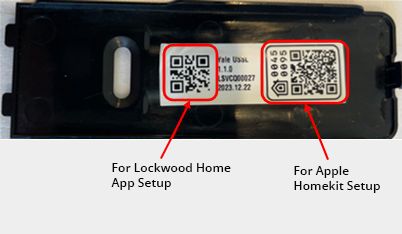
- On your smartphone, ensure you've turned on Bluetooth and open the Lockwood Home App, then select the 3 lines on the top-left hand corner of the screen. "Set up new device" and scan the QR code on the back of the top battery cover of your Lockwood Latitude Slim Smart Mortice Lock. Follow the in-App prompts to start scanning for your smart lock. Your App will tell you once your lock has been paired.
Yes, Auto-Lock is enabled by default and the default Auto-Lock time is 10 seconds. Once connected to the Lockwood Home App, Auto-Lock can only be configured using the Lockwood Home App. If desired, Auto-Lock can also be disabled.
Yes, the default Auto-lock time is 10 seconds. If the lock has not been connected to the Lockwood Home App, follow the steps on your User Guide to navigate to the Auto-Lock setting menu. If the lock has been connected to the Lockwood Home App then it can only be adjusted using the app.
Tamper Alarm
The Lockwood Latitude Slim Smart Mortice Lock has a tamper alarm which will go off if anyone attempts to force the door open.
Internal Intrusion Alarm
The lock can be set to sound an alarm if the door is opened from the inside. To activate, enter the Master Code and hold the gear key.
Performing a factory reset using the Lockwood Home App will disconnect your Lockwood Home account to the Lockwood Latitude Slim Smart Mortice Lock. For detailed steps on how to do this, refer to programming video or User Guide.
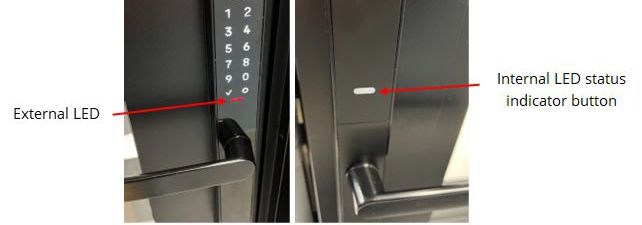
The lock is powered with four AA alkaline batteries. When the battery level is low, the external LED indicator under the keypad will flash red and the lock will prompt you to replace the batteries when unlocking or locking. If the batteries are completely flat, the lock can be powered using a USB-C connection and power source.
No, we recommend only using quality alkaline batteries to avoid damaging your lock.
A Lockwood Home Hub can be used to link your Lockwood Latitude Slim Smart Mortice Lock to your Wi-Fi network, allowing you to access your lock from anywhere in the world, provided you have an internet connection.
No, the Lockwood Latitude Slim Smart Mortice Lock is designed for residential entry doors and not to be used where the inside escutcheon will be exposed directly to outdoor elements.
Any number of digits can be added before or after your 6-digit user code to prevent it from being exposed.
For example, if your code is 123456, you could enter 3576987123456, the lock will still recognize the correct sequence (123456) within the larger input.
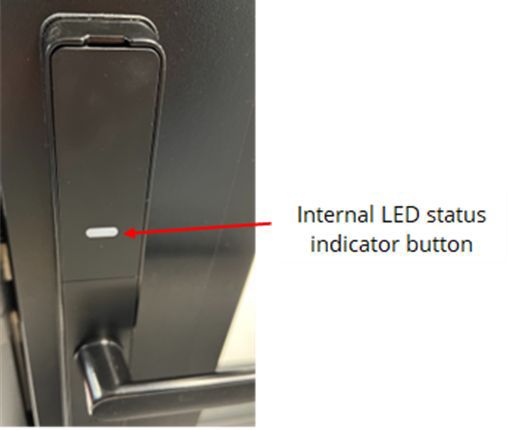
Yes, this is called Security Lockout Mode. Hold down the Internal LED status indicator button for 4 seconds, until the voice prompt is heard. This feature cannot be enabled or disabled remotely via the Lockwood Home App.
The LED colours indicate the status of the lock.
| Status | External LED Colour | Internal Status Indicator Button LED Colour | Remark |
| Unlocking | Green | Green | - |
| Locking | Red | Red | - |
| Low battery | Red | - | External LED flashes red, please change batteries |
| Security lockout mode is active | Red | Red | Internal Status Indicator Button LED Colour will flash blue every 9 seconds |
| Internal intrusion alarm has been triggered | - | - | Keypad numbers flash clockwise |
| Tamper alarm has been triggered | Red | - | Keypad numbers flash clockwise |
| Wrong user code has been entered | Red | - | - |
The internal status indicator button has 2 functions:
- Locking or Unlocking: If the smart lock is locked, pressing the status indicator button will unlock the outside handle. If the smart lock is unlocked, pressing this button will lock or disconnect the outside handle from the mortice lock. Please note that this button will not activate multipoint locking, it will only lock or disconnect the outside handle. Multipoint locking can be activated simply by lifting and releasing either the inside or outside handle.
- Status indication: Refer to LED status indication FAQ.
How-to Guide
How to programme the Lockwood Latitude Slim Smart Mortice Lock with the Lockwood Home App [video guide]
How to programme the Lockwood Latitude Slim Smart Mortice Lock without the Lockwood Home App [video guide]
- Open the Lockwood Home App and select the Guest icon in the lower right area of the screen
- Select "Invite"
- Select from one of two options:
App Access - Invites users via the Lockwood Home App to your device(s). You may select "Invite via Mobile Number" to invite a user through their mobile number or "Invite from contacts" to invite one of your smartphone contacts.
Entry Code only - Grants access by setting up a new entry code on your device(s). You may select "Invite from contacts" to invite one of your smartphone contacts.
Auto-Unlock can only be enabled and customised using the Lockwood Home App.
The following steps will help you set up the Auto-Unlock feature on your iOS or Android device:
Before setting up Auto-Unlock, ensure your location settings are turned on.
- Open the Lockwood Home App and select the applicable property from the keychain if there is more than one
- Tap the Settings Gear Icon in the lower right-hand corner on the lock circle screen
- Select the lock from the devices shown
- Select Auto-Unlock, which is listed in the automations menu
- Follow the in app guided steps to setup Auto-Unlock
- Your device may prompt you to change your location settings for the Lockwood Home App. Ensure you select Always for this.
This completes the steps to enable the Auto-Unlock feature on your Lockwood Latitude Slim Smart Mortice Lock. Your lock will automatically Unlock as you approach your door.
Conversely, if you want to disable the Auto-Unlock feature, go through the steps above and Toggle Enable Auto-Unlock off.
If connected to the Lockwood Home App, all voice prompts can be turned off only via the app. If the lock has not been connected to the Lockwood Home App, follow the steps on your User Guide to navigate to the Volume Control setting menu to turn off all voice prompts.
It is best practice to factory reset your lock upon handover. Refer to troubleshooting question - How do I factory reset my Lockwood Latitude Slim Smart Mortice Lock?
Clean all surfaces of the Lockwood Latitude Slim Smart Mortice Lock with a soft damp cloth and mild detergent only.
IMPORTANT - Do not use harsh chemicals, degreasers, abrasives, bleach, chlorine, solvents, concentrated detergents, or abrasive scouring pads on any part of your product. Some of these chemicals may damage and/or discolour your product.
Troubleshooting
- Remove and reinstall batteries
OR
- At the bottom of the outside escutcheon, peel back the black seal to reveal a button. Hold this button down to complete a restart or soft reset. Hold button down until the keypad flashes. Master codes, user codes and lock settings will not be removed.
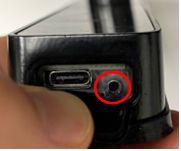
If your lock has been connected to the Lockwood Home App, refer to the programming video to factory reset your lock — How to programme the Lockwood Latitude Slim Smart Mortice Lock with the Lockwood Home App.
If your lock has not been connected to the Lockwood Home App, refer to the programming video to factory reset your lock — How to programme the Lockwood Latitude Slim Smart Mortice Lock without the Lockwood Home App.
Yes, multiple devices can be added to a single keychain in the Lockwood Home App for convenient access. To do so, open up your Lockwood Home App, select the 3 lines in the top left hand corner then select "Set up a device". Scan the QR code on the Lockwood smart device you wish to add to the keychain, then follow the in-App prompts to complete setup.
Refer to our warranty policy in accordance with Australian Consumer Law.
- Press and hold the R button (under the top battery cover) for 5 seconds
OR
- Enter the master code or registered user code
There are two possible reasons:
- 3-Minute Lockout may have been triggered. After 5 failed PIN code attempts, the keypad will be locked out for 3 minutes, preventing unauthorised access through the keypad for this duration. A number on the keypad will flash intermittently to signify the number of minutes the keypad is locked out for. Waiting for the remaining time or unlocking from the inside will enable the keypad again.
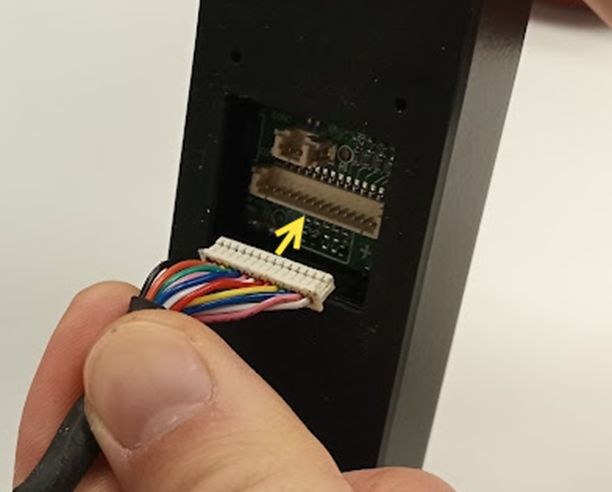
- Check your cable connection by firmly pushing the connector onto the internal body. The cable will only go in one way. To access this cable, you must remove all the batteries and unscrew the internal body to remove it off the door.
Your smart lock is either in silent mode with the volume off, or one-time silent mode is enabled. To turn off silent mode, adjust the volume settings by:
- If you're connected to the Lockwood Home App, ensure you are within Bluetooth range of the lock, open the App then navigate to "Lock Settings" → "Device Settings" → "Volume" → then set to "Low", "High" or "Off" (for silent mode).
- If you're not connected to the Lockwood Home App, enter your Master code on the lock keypad, press the R button under the top battery cover to access the main menu. Then on the keypad, press "6" then "gear" key, then "3", then the gear key:
Select 1 then the gear key for High volume
- Select 2 then the gear key for Low volume
- Select 3 then the gear key for silent mode
- One-time silent mode temporarily turns off audible keypad 'clicks' if the keypad is used immediately after to unlock and the "Unlocked" voice prompt. This mode can be activated by holding your palm over the keypad for 3 seconds.
Check that the Door Position Sensor and magnet is connected and aligned correctly. Refer to the installation instructions for more details.
We always recommend having another point of entry. However, if this is your only point of entry and you happen to forget your pin code and lose your phone, you will need professional help to regain access.
Lockwood may need to assist you with a factory reset if you've acquired a previously-used Lockwood Smart Lock. Please contact our Support team at support.au@assaabloy.com and provide your valid proof of purchase (if possible) and the serial number, which is located on the back of the device. The Lockwood support team will contact the original owner to perform the factory reset.
If the handle orientation is incorrect, ensure the handing tab is pulled upwards during handle rotation. Note: For the External body, the handing tab is accessible after peeling the gasket back. Once handing is complete, the gasket must be reinstalled, ensuring gasket spigots are firmly pushed into the relative holes for adequate sealing. Refer to installation instructions for more details.
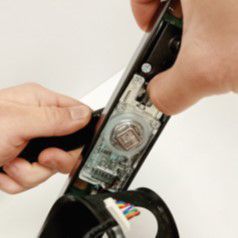
Lockwood Latitude Slim Lock Installation Video
This video walks you through the installation and programming of the Lockwood Latitude Slim Lock, covering the key steps required for a successful fit.